Get started
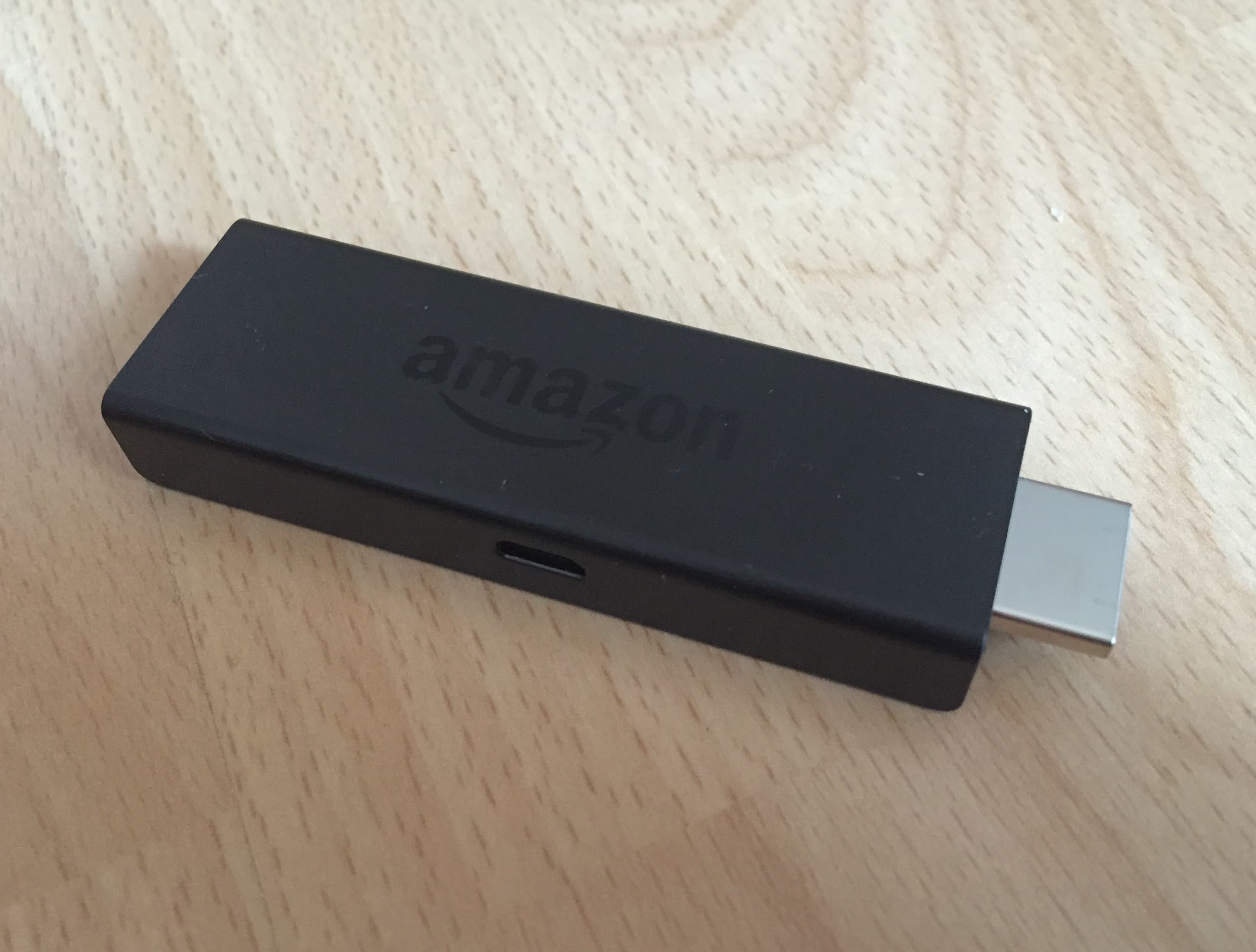
Install Netflix from the Fire TV search screen, then open the app and follow its sign-in instructions. If you need to remove an account from the device, the Fire TV application settings provide a separate route.
Change your IP location. Set up IPVanish.
Bring IPVanish into your Netflix viewing setup: choose your server country, connect and then open Netflix on your device. IPVanish changes your public IP location and encrypts the connection to its servers.
Choose a country in IPVanish, connect, then open your streaming app. The service sees the VPN server’s IP location instead of your usual one. That can help you access location-dependent services where your subscription and the provider’s rules allow it, while encrypting traffic between your device and the VPN server.
Affiliate disclosure: we may earn a commission if you buy through this link, at no extra cost to you. Check the current plan price and renewal terms before purchasing.How to set up IPVanish for streaming
- Check your viewing option. Choose the broadcaster and plan for your event or title from the viewing options above.
- Install and sign in. Choose your IPVanish plan, then install the IPVanish app from your device’s app store and sign in. Our Android TV setup guide explains the steps for compatible TV boxes.
- Choose a location and connect. Select a server in the country you want to connect through. Wait until IPVanish confirms the connection.
- Open your streaming app. Sign in to the broadcaster separately and open the event or title. Your VPN subscription does not include a TV subscription, sports pass or pay-per-view purchase.
Sign in and start watching
After the app opens, follow the on-screen setup flow to connect your Netflix account.
Once you’re signed in, pick a title and start playing it in the Netflix app.
- Enter your Netflix email address or phone number and password when prompted.
- Complete any on-screen sign-in steps.
- Choose a show or film and press Play.
If Netflix crashes or closes
If Netflix returns you to the Fire TV menu, Netflix says device data may need to be refreshed.
The Fire TV fixes include restarting the device, clearing Netflix app data, uninstalling and reinstalling the app, disabling HDMI CEC, or trying a different power supply.
- Restart the Fire TV from Settings > My Fire TV > Restart.
- Clear Netflix app data from Settings > Applications > Manage installed applications > Netflix.
- If needed, uninstall Netflix and reinstall it from the Fire TV app flow.
- If problems continue, try disabling HDMI CEC or using a power supply of at least 2.1 amps.
Reinstalling and signing back in
If you uninstall Netflix, you’ll be signed out.
Have your Netflix login details ready before reinstalling so you can sign back in straight away.
- Press the Home button on the Amazon Fire TV remote.
- Go to Settings > Applications > Manage All Installed Applications > Netflix.
- Select Uninstall, then reinstall Netflix.
- Open the app again and sign in with your account details.
Fire TV playback notes
Netflix supports selected Fire TV devices in HD and, on some models, Ultra HD.
In some regions, Alexa-enabled voice controls can work with Netflix on Fire TV.
- If you want Ultra HD, check that your Fire TV model supports it and that your TV and connection meet Netflix’s requirements.
- If your setup supports it, try Netflix again after adjusting display settings or confirming your HDMI connection.
Install Netflix on Fire TV
Netflix documents an installation route from the Fire TV home screen. Have your account details ready before opening the app.
- Choose Search on the Fire TV home screen and search for Netflix.
- Open the Netflix result and choose Free or Download. Once installation finishes, choose Open and follow the onscreen instructions.
Disconnect an account from Fire TV
Clearing the Netflix app’s data disconnects the current account. Use this when you need to remove your account from this Fire TV.
- From the Fire TV home screen, open Settings, Applications and Manage All Installed Applications.
- Choose Netflix and then Clear Data.
Sources & verification
We use official sources and automated checks to prepare this guide. Availability and prices can change.
- help.netflix.com ↗Retrieved 22/10/2026
- help.netflix.com ↗Retrieved 22/10/2026
- help.netflix.com ↗Retrieved 22/10/2026
- help.netflix.com ↗Retrieved 22/10/2026
- help.netflix.com ↗Retrieved 22/10/2026